Shopper guide
How to set up your deal alerts
Tell Dealifier how far you will go, what you are into, what you want to spend, and when you want to hear from us. After that, you only get a push when a new deal matches all of it.




Step by step
-
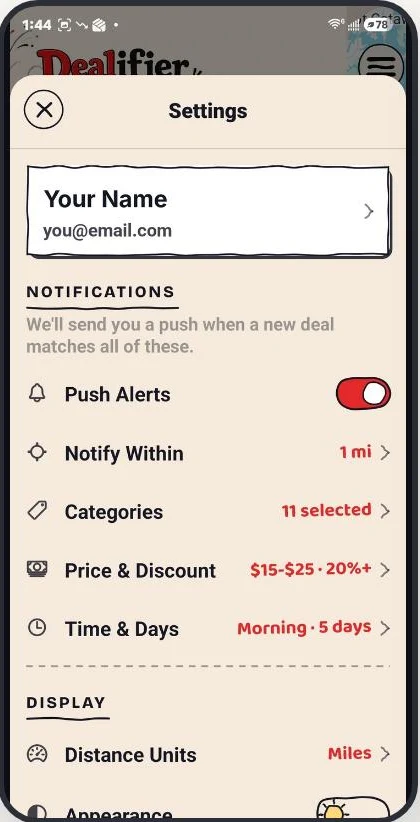
Open Settings and turn on Push Alerts
- Tap the menu button, then tap your name at the bottom of the menu. That opens Settings.
- Turn on Push Alerts.
- Under Notifications you will see four things to set: Notify Within, Categories, Price & Discount, and Time & Days.
- Every tap saves on its own. There is no save button to find.
Not getting anything? If your phone has notifications turned off for Dealifier, Settings shows a Turn On in Phone Settings row. Tap it and allow notifications.
-
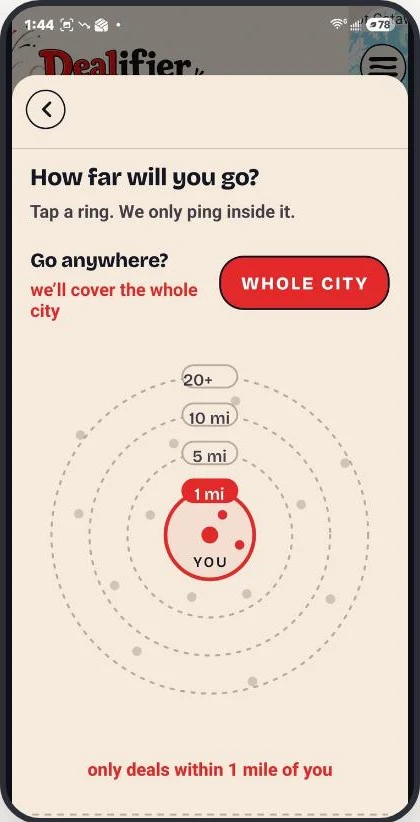
How far will you go?
- Tap a ring: 1, 5, 10, or 20+ miles.
- We only ping you about deals inside that ring.
- Happy to travel? Tap Whole City for the widest ring.
- Distance is measured from where you last opened the app.
-
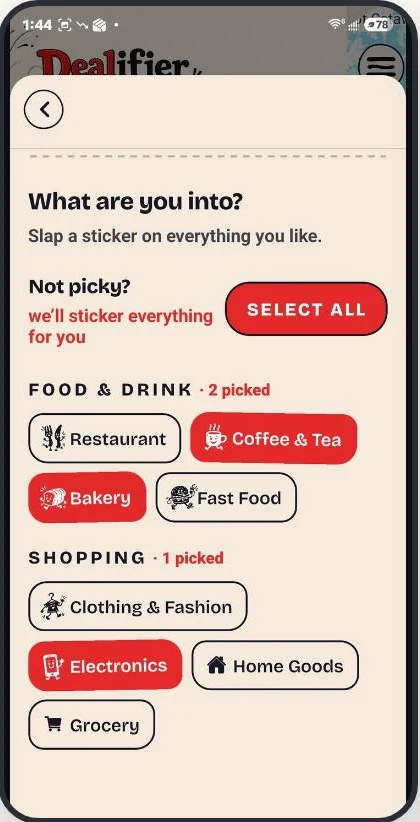
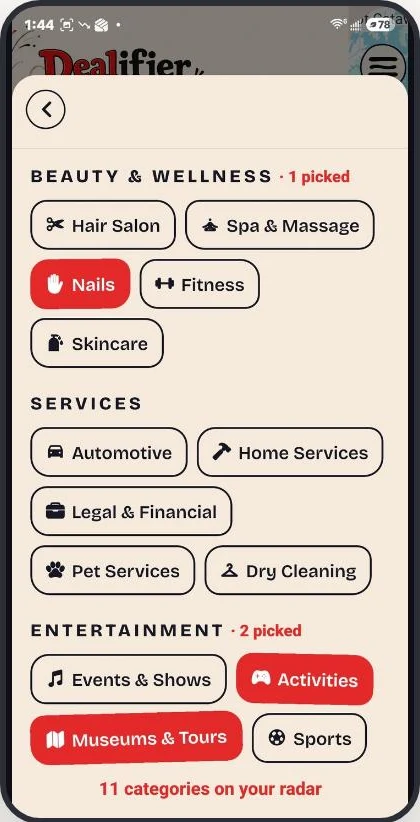
What are you into?
- Slap a sticker on every category you like, across Food & Drink, Shopping, Beauty & Wellness, Services, and Entertainment.
- Not picky? Tap Select All.
- If you pick nothing at all, we treat that as everything.
-
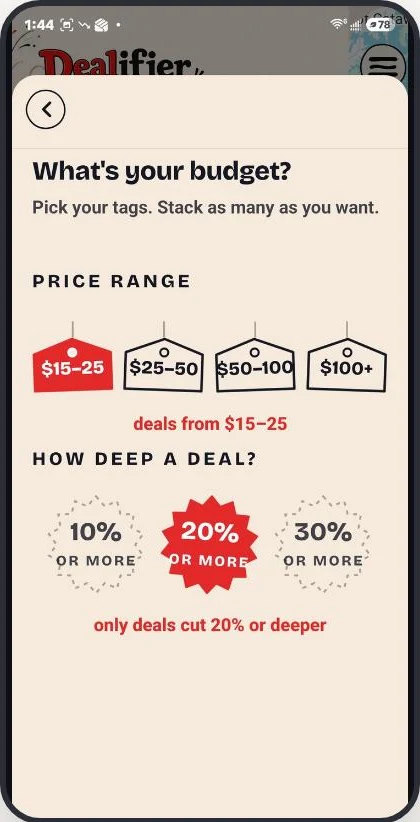
What is your budget?
- Price range: $15 to $25, $25 to $50, $50 to $100, or $100 and up. Stack as many as you want, or tap Any Price.
- How deep a deal: 10%, 20%, or 30% off or more. Pick one, or tap Any Discount.
-
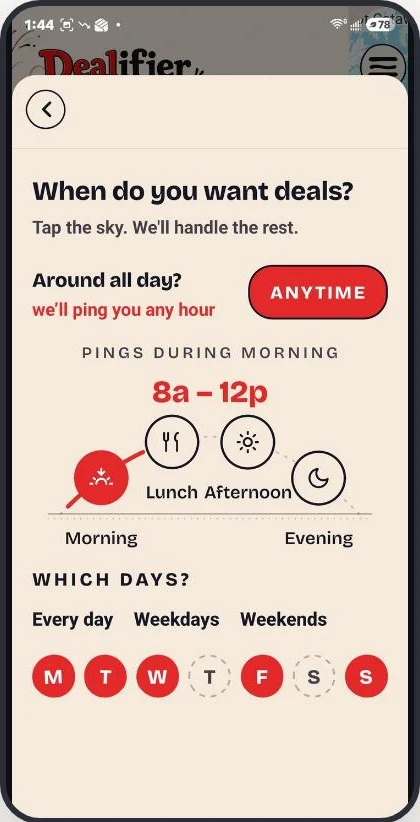
When do you want deals?
- Tap the sky: Morning (8 AM to 12 PM), Lunch (11 AM to 1 PM), Afternoon (12 PM to 5 PM), or Evening (5 PM to 9 PM). You can pick more than one.
- Around all day? Tap Anytime.
- Which days: every day, weekdays, weekends, or tap the exact days you want.
- Times are measured in Eastern Time.
Pings are live, not saved up You hear about a deal when it goes live, if that moment falls inside your times and days. A deal that goes live outside them will not ping you later, but you can still find it in the app.
See the difference on the map
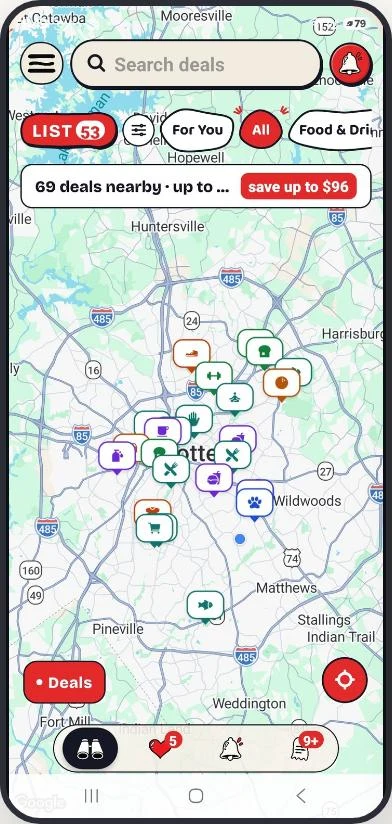
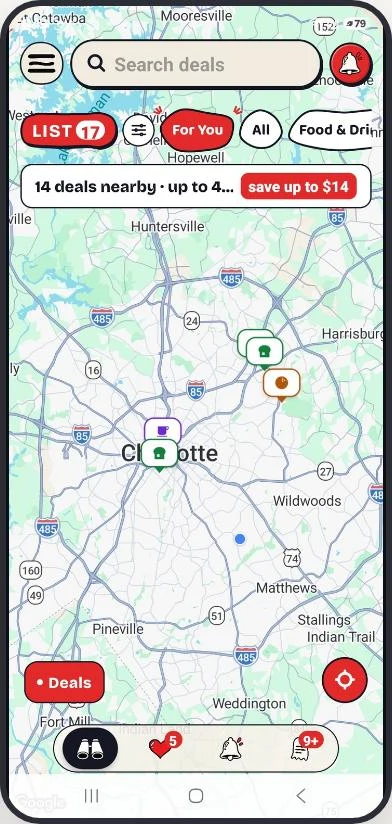
Your settings shape more than your alerts. Once you have picked at least one category, the map and the list get a For You filter that shows only deals in your categories, your price range, your discount, and your distance. Tap All any time to see everything nearby.
In this example, All shows 69 deals nearby. For You narrows it to 14.
Good to know
- All of it has to match. A push goes out only when a new deal fits your distance, a category you like, your price range, your discount, and your times and days.
- One ping per deal. We will never push you the same deal twice.
- Change it whenever. Open Settings and tap any row. Changes apply right away.

Still stuck?
Email [email protected] and a real person will get back to you.
Example settings and deals shown are for illustration only.