Business guide
How to save and reuse a template
Live postings are locked, so you cannot edit them. Templates are how you run something again or change it: save a Deal or Deal Pack once, then repost it in a few taps.




Step by step
-
Open the posting you want to keep
- Go to My Deals and tap the Deal or Deal Pack you want to reuse.
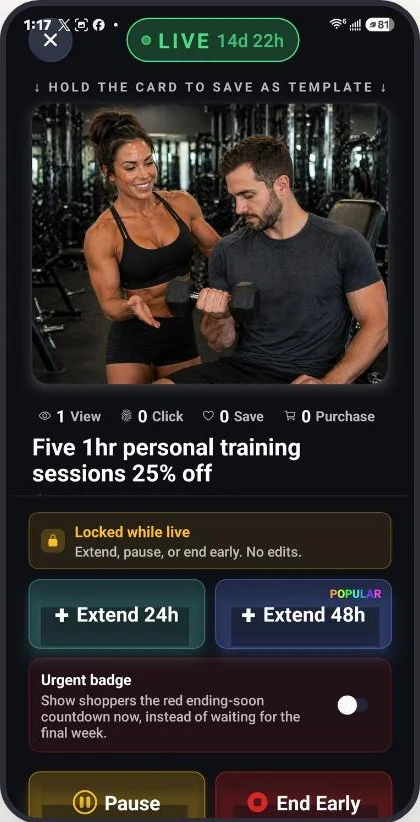
- On a live or scheduled posting, the top of the screen says Hold the card to save as template.
- On a posting that has already ended, tap the Save as Template button instead.
-
Press and hold the photo, then save
- Press and hold the photo for about a second.
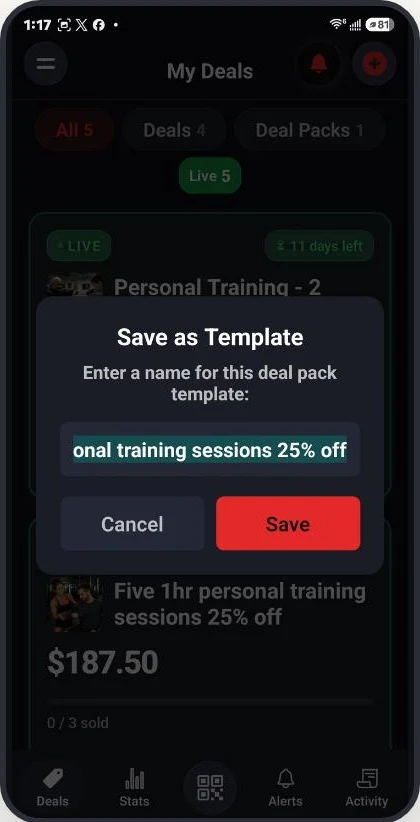
- Save as Template pops up with the name of the posting filled in.
- Keep the name or type a new one, then tap Save.
-
Find your templates
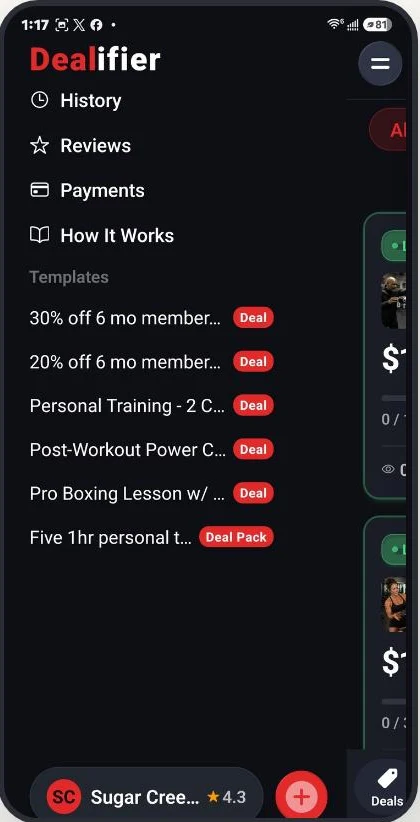
- Tap the menu button. Your templates are listed under Templates, each labeled Deal or Deal Pack.
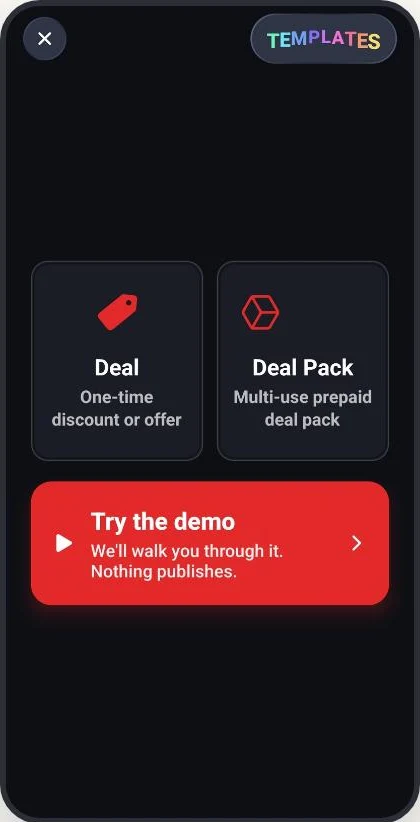
- You can also tap Templates at the top of the create screen.
-
Post it again
- Tap a template. The form opens with everything filled in.
- Dates do not carry over, so set when this one runs.
- Change anything you like, such as the price or the quantity, then review and publish.
Want to keep the new version too? After you post the changed version, save that posting as a template under a different name. Now you have both.
What a template remembers
- Kept: title, description, terms, photo, prices, quantity, how customers redeem, pickup hours, the per-customer limit, and the no-show fee.
- Not kept: your dates. The free cancellation window also resets to 24 hours, so check it before you post.
Rename or delete a template
- Press and hold a template in the list.
- Choose Rename or Delete. Deleting cannot be undone.
What you can do while a posting is live
You cannot edit a live posting, but you are not stuck with it either.
- Extend 24h or Extend 48h: add time to the end. You can extend twice.
- Pause: stop it for now and resume later.
- End Early: stop it for good, any time.
- Urgent badge: show shoppers the red ending-soon countdown right away.

Still stuck?
Email [email protected] and a real person will get back to you.
More guides
- Connect Square or Stripe Tell Dealifier where to send your money. One-time setup, done on your phone.
- How to create a Deal Post a one-time offer that runs for as long as you choose.
- How to create a Deal Pack Sell a prepaid pack that customers redeem over several visits.
The example postings shown are for illustration only.